Connecting to the cluster
Local Access
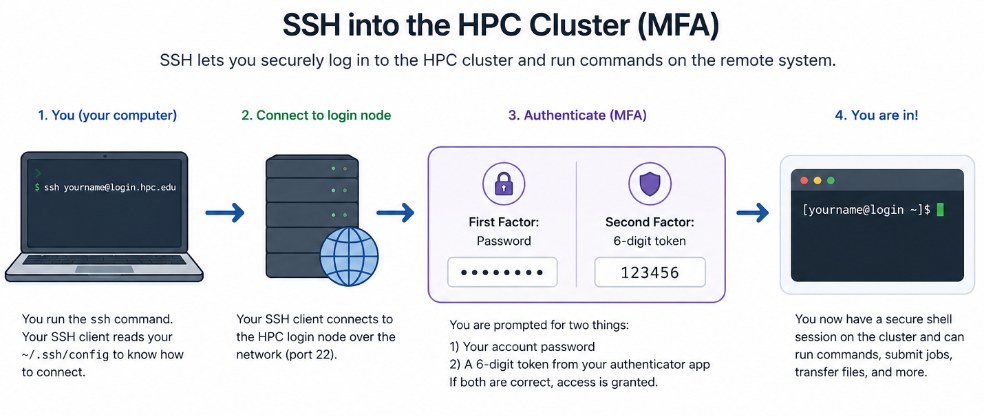
To connect to the BMRC cluster, while connected to a local wired network at the Kennedy Institute or eduroam, run the following command replacing username with your username for the cluster in your local computer terminal. You can connect to either cluster1, cluster2 , cluster3 or cluster4 by changing the command accordingly:
Recommended Terminal Setup
-
In a new local terminal run;
mkdir -p ~/.ssh/socketsthis will create a subdirectory in your home directory to store socket configurations. -
Open your ssh config file (e.g.
nano ~/.ssh/configto open with the text editornano) and add the following
Make sure to replace username with your BMRC Username in all four places
Host *
    ControlMaster auto
    ControlPath ~/.ssh/sockets/ssh_mux_%h_%p_%r
    ControlPersist 1

Host bmrc1
     User username
     hostname cluster1.bmrc.ox.ac.uk
     ForwardAgent yes
     ForwardX11Trusted yes
     ControlMaster auto
     ControlPath ~/.ssh/sockets/ssh-socket-%r-%h-%p
     ControlPersist 24h
     ServerAliveInterval 300
     ServerAliveCountMax 2

Host bmrc2
     User username
     hostname cluster2.bmrc.ox.ac.uk
     ForwardAgent yes
     ForwardX11Trusted yes
     ControlMaster auto
     ControlPath ~/.ssh/sockets/ssh-socket-%r-%h-%p
     ControlPersist 24h
     ServerAliveInterval 300
     ServerAliveCountMax 2

Host bmrc3
     User username
     hostname cluster3.bmrc.ox.ac.uk
     ForwardAgent yes
     ForwardX11Trusted yes
     ControlMaster auto
     ControlPath ~/.ssh/sockets/ssh-socket-%r-%h-%p
     ControlPersist 24h
     ServerAliveInterval 300
     ServerAliveCountMax 2

Host bmrc4
     User username
     hostname cluster4.bmrc.ox.ac.uk
     ForwardAgent yes
     ForwardX11Trusted yes
     ControlMaster auto
     ControlPath ~/.ssh/sockets/ssh-socket-%r-%h-%p
     ControlPersist 24h
     ServerAliveInterval 300
     ServerAliveCountMax 2
bmrc1 , bmrc2, etc. For an example, if you wanto to connec to cluster1.bmrc.ox.ac.uk which is bmrc1, execute
Remote Access
For remote connections (when away from the University), you will need to connect to Oxford VPN (vpn.ox.ac.uk) OR one of the MSD vpns
Two-factor authentication
The BMRC cluster employs two-factor authentication. After your account has been created and you have received a welcome email, we will arrange an induction session where we will set up your two-factor authentication. For two-factor authentication you can use one of available smartphone apps (for example, Microsoft or Google Authenticator) or one of the supported authenticator applications, that can be run on a local computer.
More information on available methods can be found here.