Connecting to the cluster
Network Requirements
- Local - If you are attempting to access BMRC services from Oxford eduroam or a wired connection within a University property (excluding some colleges), no further action is required.
- Remote - If you are attempting to access the services from a remote network connection ( home,etc), please make sure the device is connected to Oxford or MSD vpn
First Time Login - Setting a New Cluster Password
On your first login to the BMRC cluster, you will be required to replace your temporary password with a new cluster password.
Before you begin
This guide assumes that:
- You have received a temporary password by email from the KIR Research Computing Manage OR BMRC Team
- You have set up two-factor authentication (2FA) by scanning the QR code provided by the KIR Research Computing Manager. Any authenticator app may be used (e.g. Microsoft Authenticator, Authy, Google Authenticator).
Connecting to the cluster
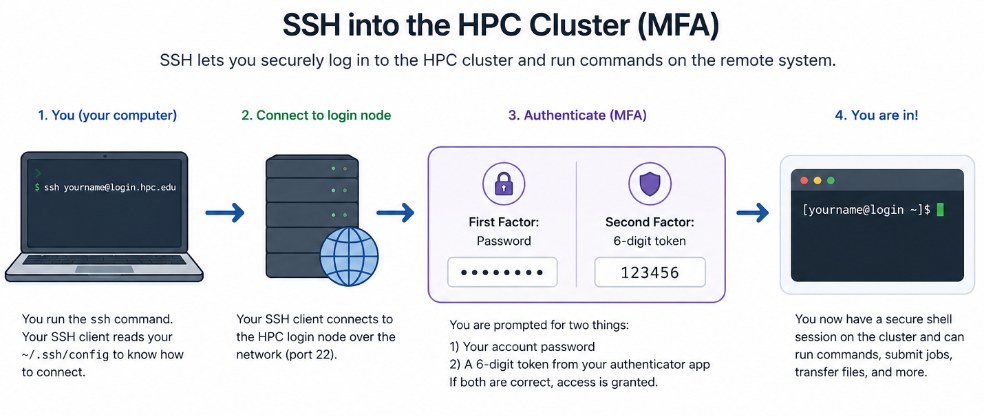
Open a terminal and run the following command, replacing bmrcusername with your BMRC username:
Tip
No characters are displayed while you type a password. This is expected behaviour.
The password reset then follows a three-step process.
Authenticate with your temporary password
You will be prompted for two factors:
| Prompt | What to enter |
|---|---|
First Factor |
The temporary password sent to you by email. Copying and pasting it is recommended. |
Second Factor |
The current six-digit token from your 2FA app, without spaces. |
Confirm your current password
You will see a message stating that your password has expired, followed by these prompts:
Wait for a new token
Before completing the Second Factor prompt in Step 2, wait until your 2FA app displays a new six-digit token. Re-entering the token used in Step 1 will cause the password reset to fail.
| Prompt | What to enter |
|---|---|
Current Password |
The same temporary password used in Step 1. |
Second Factor |
A new six-digit token from your 2FA app. |
Set your new password
You will be prompted to enter your New Password and then to confirm it.
The new password must meet the same requirements as your University SSO password:
- At least 16 characters
- At least one upper-case letter
- At least one lower-case letter
- At least one digit
- At least one special character
If the password reset fails
If the reset is unsuccessful, the process returns to Step 1, and you will need to repeat Steps 1 to 3.
The two most common causes of a failed reset are:
- Entering the same six-digit token at the
Second Factorprompt in both Step 1 and Step 2. - A mismatch between the new password and its confirmation entry.
Successful login
Once your password has been changed successfully, you will be logged into the cluster1 login node, and your terminal prompt will change to show your username and the node name, for example:
Use your new cluster password, together with a 2FA token, for all future logins.