Terminal based interactive sessions with srun
What is srun and when should you use it?
srun is the Slurm command for launching interactive jobs — sessions where you work directly in a terminal on a compute node in real time, rather than submitting a script to run in the background.
Use srun when you need to:
- Explore data or test commands interactively before writing a batch script
- Run short, exploratory analyses that don't warrant a full
sbatchsubmission - Debug a pipeline step directly on a compute node
- Use software that requires an interactive terminal — e.g. workflow managers such as Snakemake or
Nextflow, where launching the pipeline interactively can be more convenient than wrapping a command
with
sbatch --wrap
srun sessions are still Slurm jobs
Even though srun feels like a regular terminal session, it is a full Slurm job under the hood. It consumes resources from your allocation, appears in squeue, and is subject to the same partition limits and scheduling policies as any sbatch job.
Where to run srun
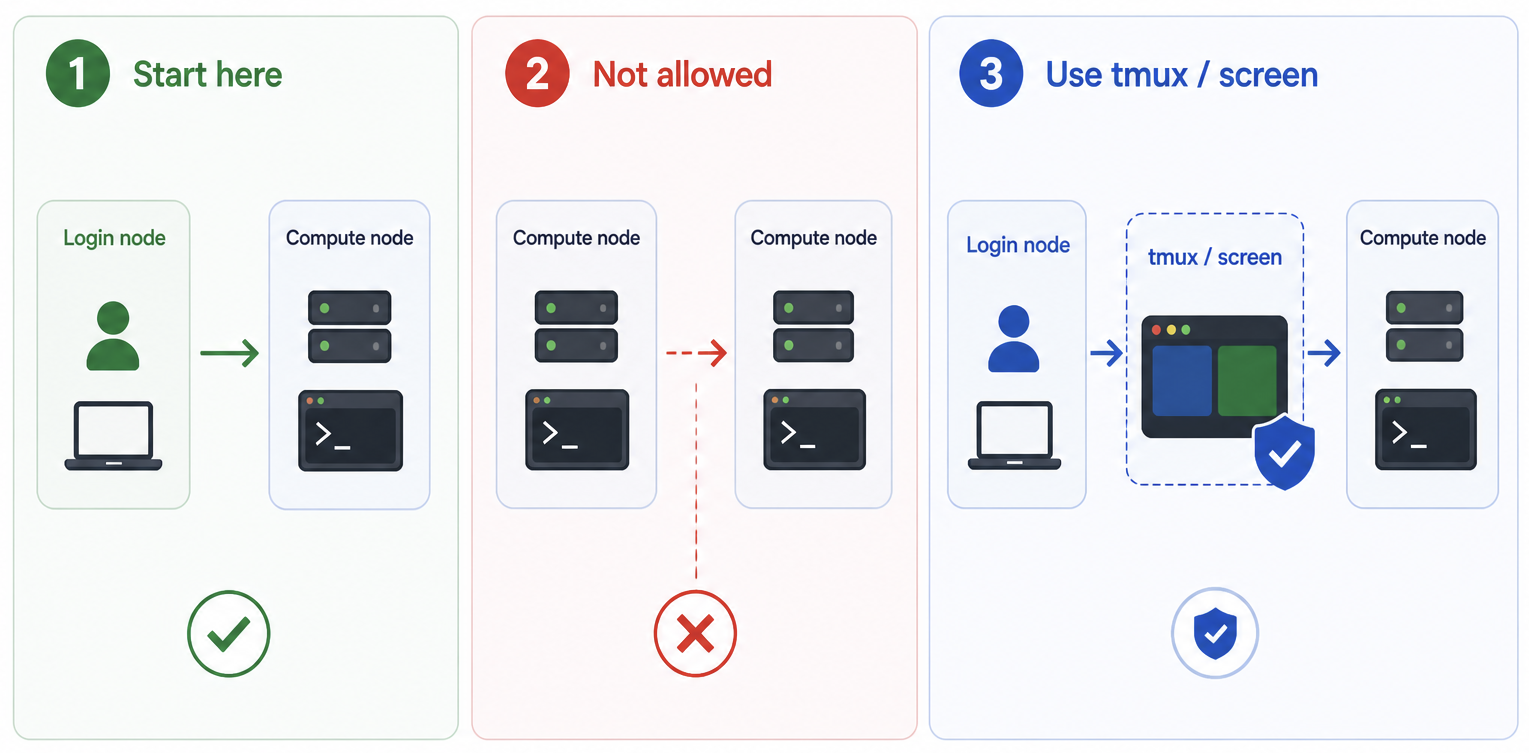
You must invoke srun from a login node. Running srun from within an existing compute node session (e.g. from inside another job) is not permitted on BMRC.
Run your srun session inside tmux
We strongly recommend launching srun from within a tmux session rather than directly in your login shell.
If your SSH connection drops while srun is running in the foreground, the session will be terminated — and any work in progress will be lost. A tmux session persists on the login node independently of your SSH connection, so you can safely reconnect and resume.
For a full guide on using tmux on BMRC, see the tmux support page.
Request resources carefully — especially time
When you submit an srun job, you must specify how long you need the session (--time). Slurm will hold the compute node for the full duration you request, even if you finish early.
Release resources when you're done
If you requested a 30-hour session but finish your work in 3 hours, the node remains allocated to you for the remaining 27 hours — blocking other users from accessing those resources.
Always release your session as soon as you are finished, either by:
- Typing
exitin the interactive shell to end the session cleanly - Or, if the session is detached or unresponsive, cancelling it by job ID:
As a rule of thumb: request the time you expect to need, plus a small buffer — and don't leave sessions running overnight unless you genuinely intend to use them.
Advanced topics
Scheduling a delayed start with --begin
By default, srun starts your session as soon as resources are available. If you want to delay the
start — for example, to avoid a session being allocated while you are away from your desk — you can
use the --begin flag.
--begin accepts both absolute and relative time values:
| Value | Meaning |
|---|---|
--begin=14:00 |
Start no earlier than 2 p.m. today (24-hour format) |
--begin=2025-06-01T09:00:00 |
Start no earlier than 9 a.m. on 1 June 2025 |
--begin=now+2hours |
Wait at least 2 hours before starting |
--begin=now+30minutes |
Wait at least 30 minutes before starting |
A session with --begin is still queued and consuming your allocation
The job will appear in squeue as pending (PD). If you no longer need the session,
cancel it with scancel <jobid> rather than leaving it in the queue.
Modifying a pending srun session
If your session is still waiting in the queue, you can adjust its start time using scontrol
without needing to cancel and resubmit.
Postponing the start
A common scenario: you submitted an interactive session but now realise you won't have time to use it before the end of the day. Rather than leave it running overnight, postpone it:
Avoid setting StartTime=tomorrow without a time component — Slurm will interpret this as midnight, and your session may start while you are asleep
Bringing the start forward
If a session was previously postponed and you want it to start immediately:
Finding your session's job ID
Cancelling your srun session
If you are finished with your interactive session, always release the resources rather than letting the allocation run to its time limit.
From within the session, simply type:
From outside the session (e.g. after reconnecting via tmux), find the job ID and cancel it:
To cancel all your running interactive sessions at once: