RStudio-Server on BMRC
RStudio is available on BMRC through three different access methods. Choose the one that best fits your need/workflow:
-
Open OnDemand
Launch RStudio directly in your browser with a few clicks. No SSH tunnels or terminal setup required. Best for everyday interactive work.
Recommended for most users.
-
Manual via
srun
Start RStudio Server from an interactive Slurm session and connect via SSH tunnel. Useful for fine-grained control over resources or debugging environment issues outside of OnDemand.
Launch with srun -
Posit Workbench
A shared, always-on RStudio environment accessible at a fixed URL. Supports multiple concurrent sessions and persistent projects. However, this has limited capacity (CPUs and memory). Access Workbench
Prerequisites
Prior to launching RStudio-server via srun, make sure to setup your ~/.Rprofile according to these
instructions
ondemand00.bmrc.ox.ac.uk
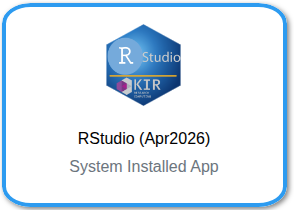
There are three RStudio apps in the OnDemand dashboard. Please choose the one with the custom logo below; the other two are legacy and support only up to R/4.3*
-
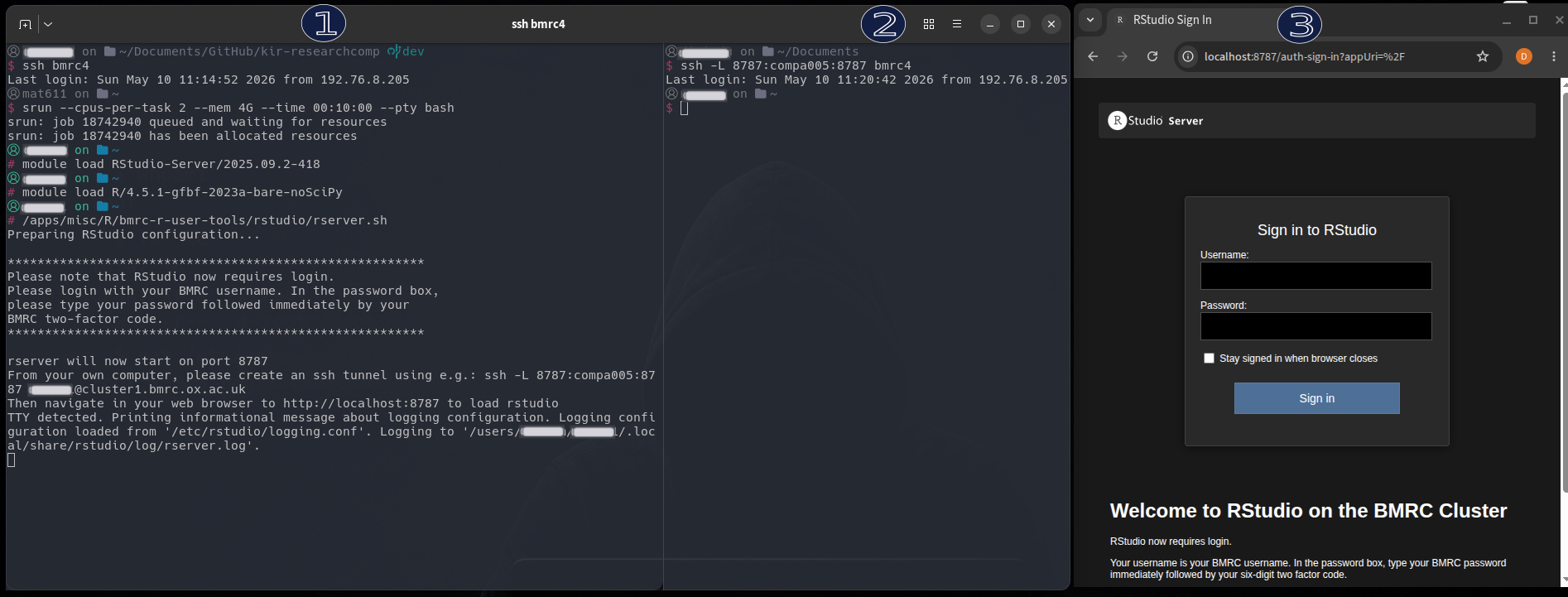
First, login to BMRC ( any login node ) and then start an
sruninteractive session on the cluster, requesting an appropriate amount of resources for your intended calculations. For example, 3 CPU slots with a total of 20GB of memory:Do not choose
himempartition as it is not exposed to identity management system.i.e. RStudio login page will trigger failues forhimempartition -
From within your interactive session, load the standalone
RStudio-Server/2025.09.2-418module and the R module of interest . For an example,R/4.5.1-gfbf-2023a-bare-noSciPy -
Start your RStudio service by running:
- The script above will start RStudio on a suitable free port and provide instructions for how to connect to and log into the RStudio from your own computer.
-
On your own computer, open a new terminal window and create an ssh tunnel to the RStudio server by running the
sshcommand suggested in the instructions. -
In your browser, navigate to the address shown in the instructions and you should see the RStudio login screen.
Login is required to access RStudio sessions. Please use your BMRC credentials and follow the instructions on how to log into the session.
srun - Steps
Similar to ssh access, KIR Posit Workbench web-service requires your device to be on Oxford VPN, MSD VPN, or eduroam (no VPN needed if already on eduroam WiFi)
The server is accessible at: https://rstudio-kir.bmrc.ox.ac.uk through Chrome or Firefox browser. Do not use Safari browser to access the server, as it has been identified to have problems with connection.
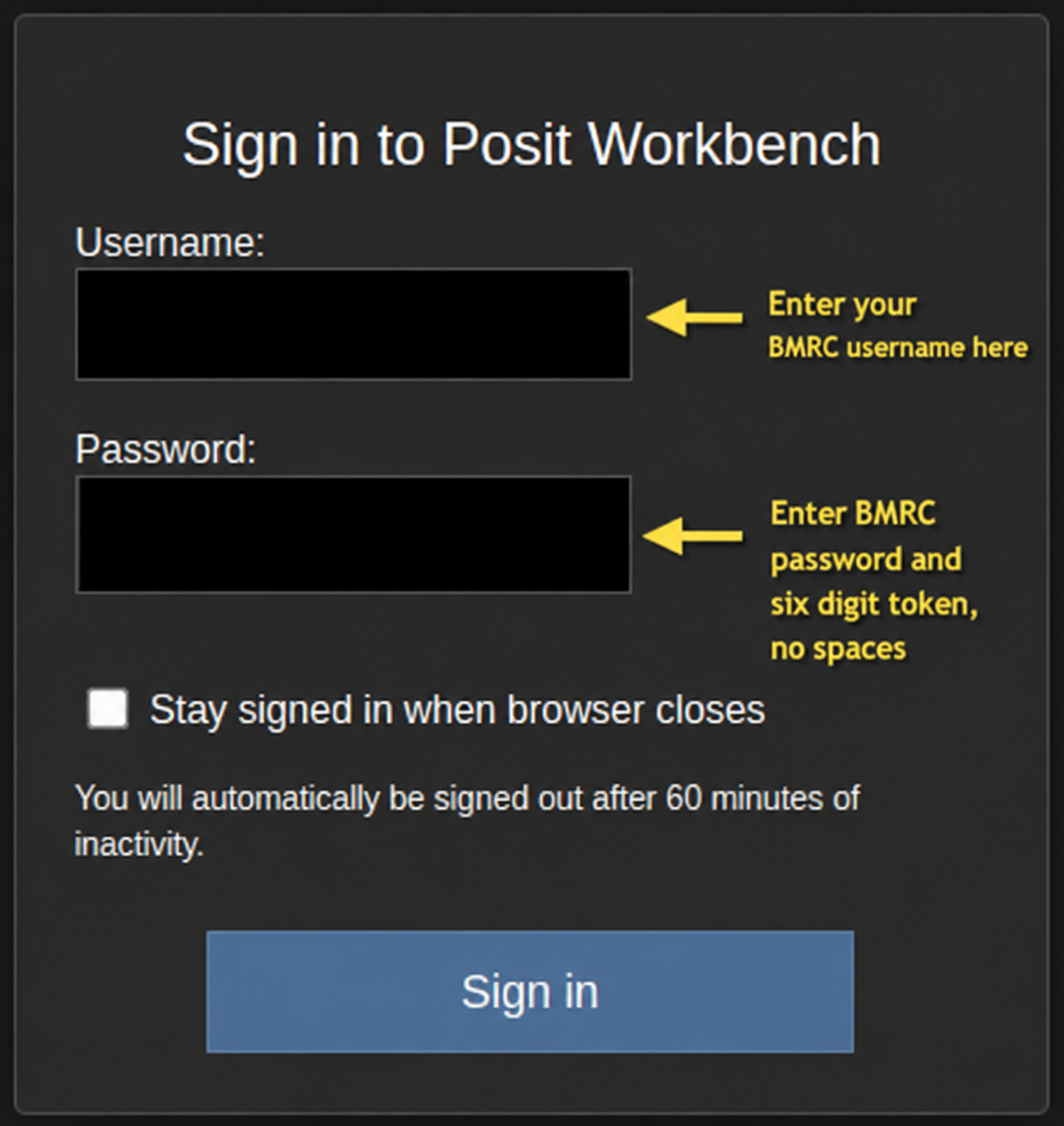
To log in to the server, enter your BMRC user name and then your BMRC password immediately followed by 6-digit second authentication factor in the same password field.
Before you start your workflow
Please remember that RStudio server has a limited capacity (CPUs and memory). It should be used primarily for lightweight calculations, visualising results and code development. All heavy calculations should be run on the cluster either via OpenOnDemand or srun
RStudio Startup Sequence in Posit Workbench